
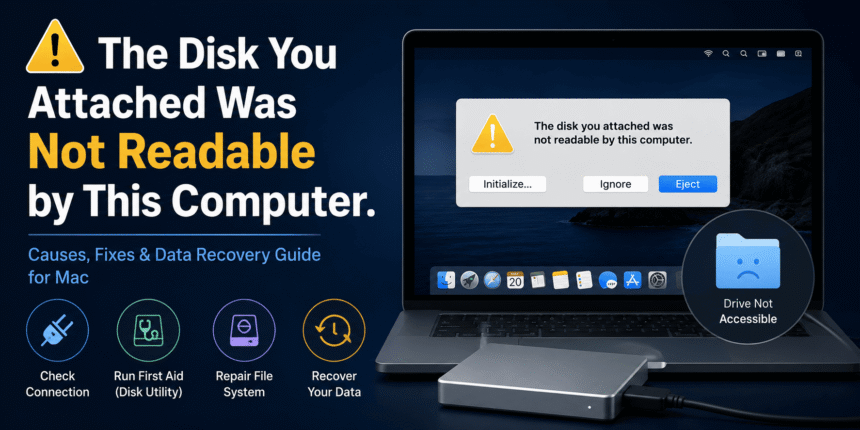
Seeing the message “The disk you attached was not readable by this computer” on your Mac can be frustrating, especially if the drive contains important files. This error typically appears when macOS cannot recognize or mount an external storage device such as a USB flash drive, external hard drive, SSD, or memory card.
- What Does “The Disk You Attached Was Not Readable by This Computer” Mean?
- Common Causes of the Error
- 1. Corrupted File System
- 2. Unsupported File System
- 3. Damaged USB Cable
- 4. Faulty USB Port
- 5. Hardware Failure
- 6. Virus or Malware
- Understanding the macOS Options
- Step-by-Step Troubleshooting
- Step 1: Reconnect the Drive
- Step 2: Restart Your Mac
- Step 3: Check Disk Utility
- Step 4: Run First Aid
- Step 5: Test on Another Computer
- Step 6: Update macOS
- How to Recover Data
- Should You Format the Drive?
- Choosing the Right File System
- How to Prevent This Error
- Always Eject Drives Properly
- Keep Backups
- Avoid Cheap USB Hubs
- Protect Drives from Physical Damage
- Update Your Operating System
- Monitor Drive Health
- When to Seek Professional Help
- Frequently Asked Questions
- Why does my Mac say the disk is not readable?
- Will clicking “Initialize” erase my drive?
- Can I recover files from an unreadable drive?
- Why is the drive readable on Windows but not Mac?
- Is the drive permanently damaged?
- Final Thoughts
While the message may seem alarming, it doesn’t always mean your data is lost. In many cases, the issue can be resolved by checking connections, repairing the drive, or using the correct file system. However, if the drive has suffered physical damage or severe corruption, you may need data recovery tools or professional assistance.
In this guide, we’ll explain why this error occurs, how to fix it safely, and what you can do to recover your files.
What Does “The Disk You Attached Was Not Readable by This Computer” Mean?
This error appears when macOS detects a storage device but cannot read its file system.
When you connect a drive, your Mac attempts to:
- Detect the hardware
- Identify the file system
- Mount the drive
- Display its contents in Finder
If any of these steps fail, you’ll see the warning message.
Often, macOS provides three options:
- Initialize
- Ignore
- Eject
Choosing the wrong option may complicate recovery, so it’s important to understand what each button does before proceeding.
Common Causes of the Error
Several issues can trigger this message.
1. Corrupted File System
The most common cause is file system corruption.
This can happen because of:
- Sudden power loss
- Unsafe drive removal
- Interrupted file transfers
- Software crashes
Corruption prevents macOS from reading the drive correctly.
2. Unsupported File System
Your Mac may not support the drive’s format.
Examples include:
- Linux EXT4 partitions
- Proprietary camera formats
- Vendor-specific storage systems
Although Windows formats like NTFS can usually be read by macOS, writing to them requires additional software.
3. Damaged USB Cable
A faulty cable can interrupt communication between your Mac and the storage device.
Symptoms include:
- Random disconnections
- Slow detection
- Drive appearing and disappearing
Replacing the cable is often a simple fix.
4. Faulty USB Port
The problem may be your Mac’s USB port rather than the drive itself.
Try connecting the drive to:
- Another USB port
- Another USB-C adapter
- Another computer
This helps isolate the cause.
5. Hardware Failure
Like any electronic device, storage drives eventually wear out.
Signs include:
- Clicking noises
- Grinding sounds
- Extremely slow performance
- Frequent disconnects
Mechanical hard drives are particularly vulnerable to physical damage.
6. Virus or Malware
If the drive was previously connected to an infected computer, malware may corrupt the file system or partition table.
Although macOS is generally secure, infected removable media can still cause problems.
Understanding the macOS Options
When the warning appears, you’ll usually see three buttons.
Initialize
Selecting Initialize opens Disk Utility.
It does not immediately erase the drive, but if you proceed with formatting from Disk Utility, all existing data may be lost.
Choose this option only after attempting recovery if the data is important.
Ignore
Ignore simply closes the warning.
The drive remains connected, allowing you to attempt recovery using Disk Utility or data recovery software.
This is often the safest choice initially.
Eject
Safely disconnects the storage device.
Use this option if you suspect a loose connection or want to reconnect the drive.
Step-by-Step Troubleshooting
Follow these steps in order.
Step 1: Reconnect the Drive
Disconnect the drive safely.
Then reconnect it using:
- A different USB port
- A different cable
- Another adapter if applicable
Simple connection issues are surprisingly common.
Step 2: Restart Your Mac
Restarting macOS can resolve temporary software glitches affecting storage devices.
After restarting:
- Connect only the affected drive.
- Wait a few moments.
- Check Finder.
Step 3: Check Disk Utility
Disk Utility can detect drives even when Finder cannot.
To open it:
- Open Applications.
- Go to Utilities.
- Launch Disk Utility.
If your drive appears:
- Select it.
- Check whether it is mounted.
- Review its file system.
Step 4: Run First Aid
Apple’s First Aid tool checks the file system for errors.
To use it:
- Open Disk Utility.
- Select the drive.
- Click First Aid.
- Confirm the repair.
If successful, the drive may mount normally afterward.
Step 5: Test on Another Computer
Connect the drive to:
- Another Mac
- A Windows PC
If another computer can read it, the issue likely lies with your Mac’s configuration rather than the drive itself.
Step 6: Update macOS
Occasionally, outdated system software causes compatibility issues.
Installing the latest macOS updates may improve hardware support and fix bugs affecting external storage.
How to Recover Data
If the drive still cannot be read, focus on recovering your files before attempting to erase or reformat it.
Possible recovery options include:
- Data recovery software
- Time Machine backups
- Cloud backups
- Professional data recovery services
Avoid repeatedly reconnecting a failing drive, as this may worsen hardware damage.
Should You Format the Drive?
Formatting should generally be your last resort, especially if the drive contains valuable data.
Formatting may solve file system issues but will remove existing information from the storage device.
Only proceed once you’re confident your important files have been recovered or safely backed up.
Choosing the Right File System
Selecting the appropriate file system depends on how you’ll use the drive.
| File System | Best For | Compatible With |
|---|---|---|
| APFS | Modern Macs | macOS |
| Mac OS Extended (HFS+) | Older Macs | macOS |
| exFAT | Windows & Mac | Both |
| FAT32 | Older devices | Most systems |
| NTFS | Windows | Read-only on macOS by default |
For drives shared between Windows and macOS, exFAT is usually the best choice.
How to Prevent This Error
Following good storage practices reduces the chance of future problems.
Always Eject Drives Properly
Never unplug a storage device while files are still being copied.
Keep Backups
Maintain regular backups of important files using external drives or cloud storage.
Avoid Cheap USB Hubs
Low-quality adapters can cause unstable connections.
Protect Drives from Physical Damage
Avoid drops, moisture, and excessive heat.
Update Your Operating System
System updates often include storage compatibility improvements.
Monitor Drive Health
Replace drives that begin showing signs of failure.
When to Seek Professional Help
Professional recovery services may be necessary if:
- The drive makes clicking sounds.
- It isn’t detected by any computer.
- It contains critical business data.
- The drive suffered water or impact damage.
- Recovery software cannot access the files.
Attempting DIY repairs on physically damaged drives can reduce the chances of successful recovery.
Frequently Asked Questions
Why does my Mac say the disk is not readable?
Usually because the drive has a corrupted file system, unsupported format, hardware issue, or connection problem.
Will clicking “Initialize” erase my drive?
No. Clicking Initialize simply opens Disk Utility. However, choosing to erase or format the drive from there will remove its data.
Can I recover files from an unreadable drive?
In many cases, yes. If the issue is logical rather than physical, data recovery software or backups may allow you to retrieve your files.
Why is the drive readable on Windows but not Mac?
The drive may use a file system that macOS doesn’t fully support, or it may require repair. Windows and macOS handle some file systems differently.
Is the drive permanently damaged?
Not necessarily. Many unreadable drive issues are caused by software or file system problems rather than hardware failure.
Final Thoughts
Encountering the “The disk you attached was not readable by this computer” error doesn’t always mean your storage device is beyond repair. In many cases, the problem stems from a corrupted file system, an unsupported format, a faulty cable, or a temporary software issue. By following a structured troubleshooting process—checking connections, using Disk Utility’s First Aid feature, testing the drive on another computer, and recovering data before formatting—you can often resolve the issue without losing important files.
If the drive shows signs of physical damage or remains unreadable after multiple attempts, it’s best to stop using it and consider professional data recovery services. Taking preventive measures such as safely ejecting drives, keeping regular backups, and monitoring storage health can help reduce the risk of encountering this error in the future.
Also, read: 12 Best Colossyan Alternatives for YouTube Video Editing in 2026


